
0%
UVIO
Elevate logo

Elevate - benefits platform UX/UI design

Taking an HSA, FSA and HRA product from “good enough” wireframes to a product you can proudly demo

Project at a glance

Overview
Web platform for benefits participants and admins
Scope
150+ product screens
Our role
UX audit, UX improvements, UI design, design system, clickable prototypes, design QA
Industry
Fintech, Healthcare

Introduction

Health benefits are supposed to feel like a safety net, not like filing a tax return. Elevate is a platform for HSA, FSA and HRA accounts that pays claims in seconds and helps admins run complex programs without legacy chaos.

When they came to us they already had dozens of wireframes, but the experience still felt heavy and scattered, so our job was to turn that raw material into a product people are not afraid to open every day.

Problem

On the surface Elevate already had flows for everything: profile, cards, bills, receipts. But when we walked through them like real users, a different picture appeared.

Most journeys felt like checklists instead of natural flows. Simple tasks bounced users between sections, and actions like “pay”, “reimburse later” or “lock card” did not clearly show what would happen next. Receipts and transactions were split across different areas, so it was easy to lose track of what belonged together.

Our job was to keep Elevate’s powerful logic and redesign these journeys into a few clear flows that users can finish with confidence.

How we solved it

  1. Map the product flows

    UNDERSTAND THE SYSTEM

    We went through every UX wireframe line by line with Elevate and the original team, mapping how each part of the product should work in real life.

  2. Clarify rules and edge cases

    STRUCTURE THE EXPERIENCE

    For each journey, we defined rules, states, edge cases, and dependencies before moving into visual design.

  3. Design screen by screen

    BUILD WITH CONSISTENCY

    We refined the product section by section and translated the clarified UX into UI across more than 150 participant and admin screens.

  4. Prototype and align

    VALIDATE BEFORE HANDOFF

    Once the flows were clear end to end, we built a clickable prototype that the Elevate team could test, review, and share with stakeholders.

Home screen

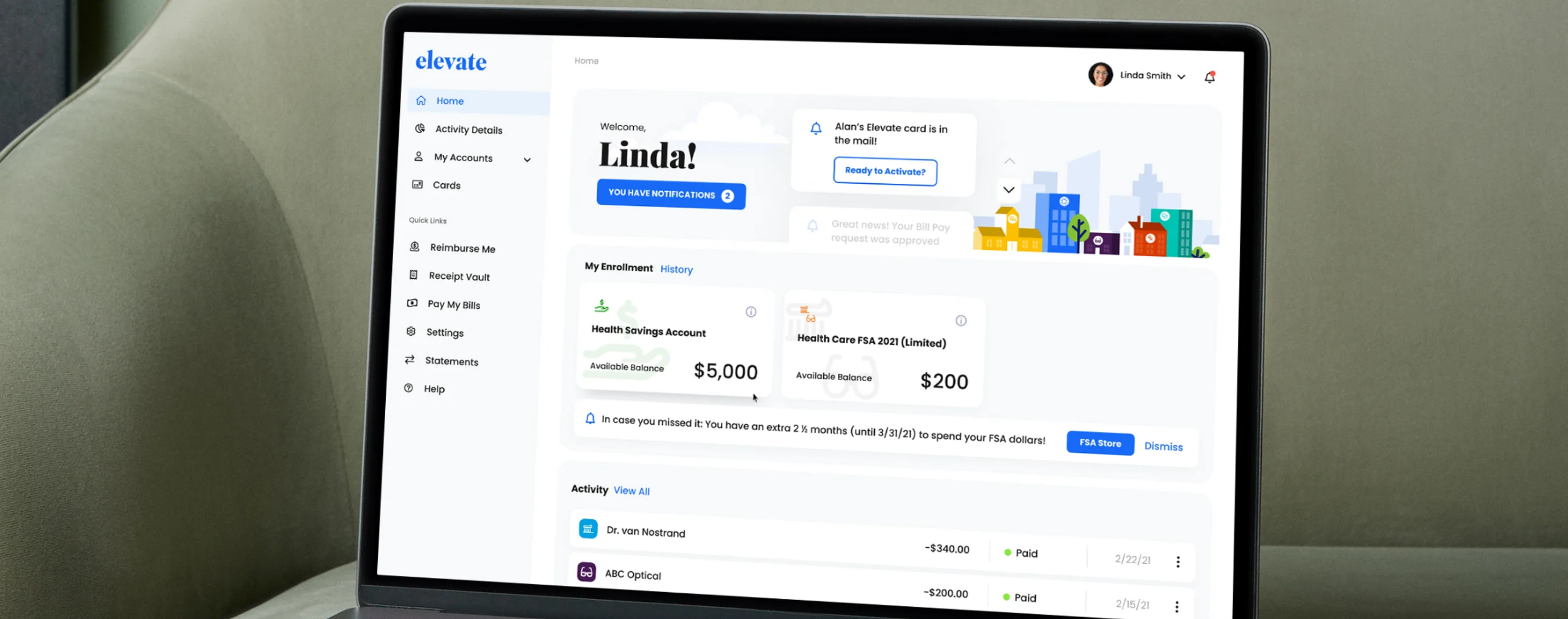
The home screen had to answer one simple question: where do I start today.

We turned it into a control center with balances, key alerts and recent activity in one place, so participants see their situation right away instead of hunting through the product.
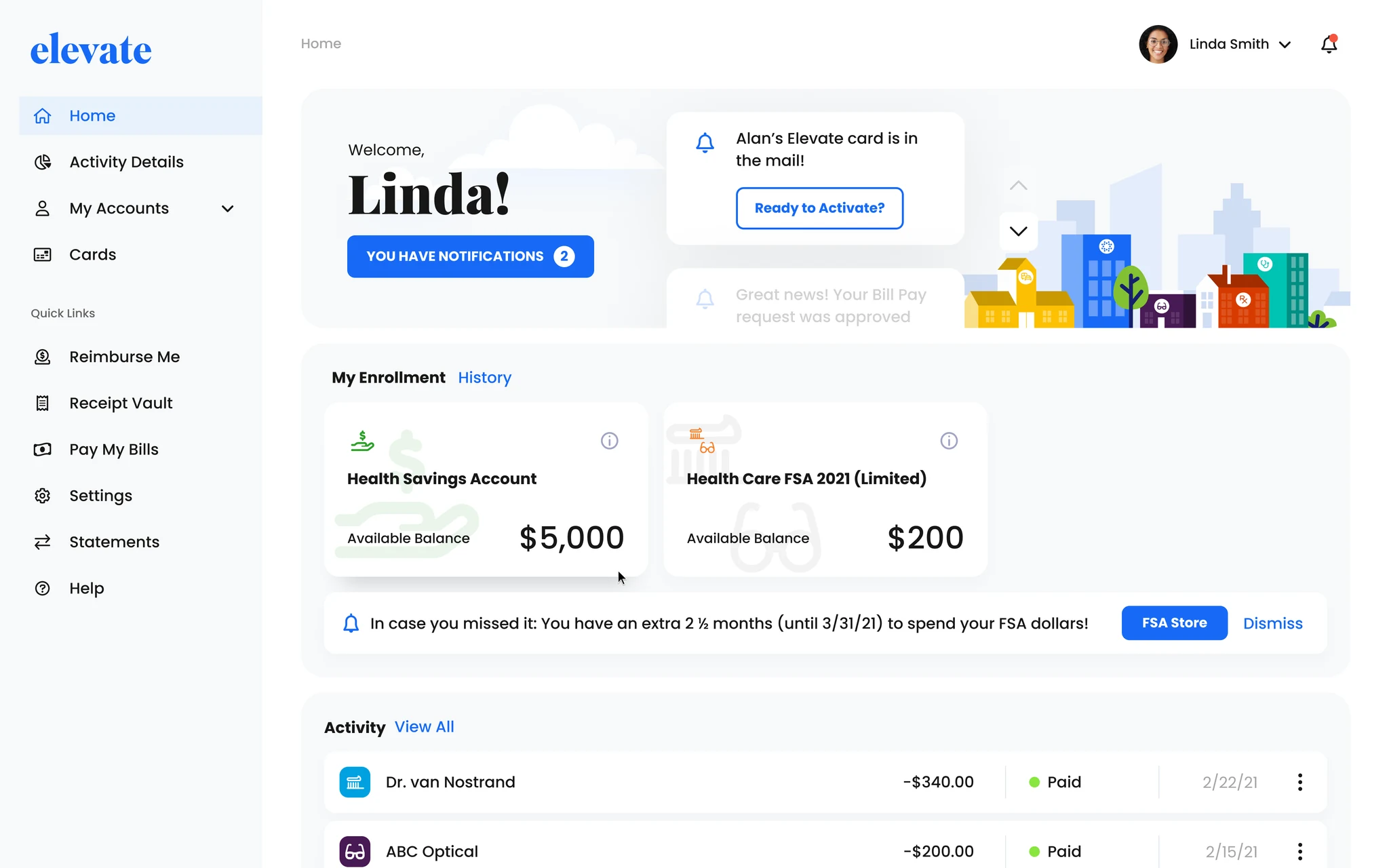
Home screen screen

What we focused on

  • Put HSA and FSA balances front and center so users see their money first.
  • Grouped key actions into clear sections and quick links for things like reimbursements, receipts and bill pay.
  • Added a simple notification strip for items that need attention.
  • Pulled recent activity onto the home screen so users can see what just happened in seconds.

Impact

Participants see what matters now and what to do next, without digging through the product.
Activity details

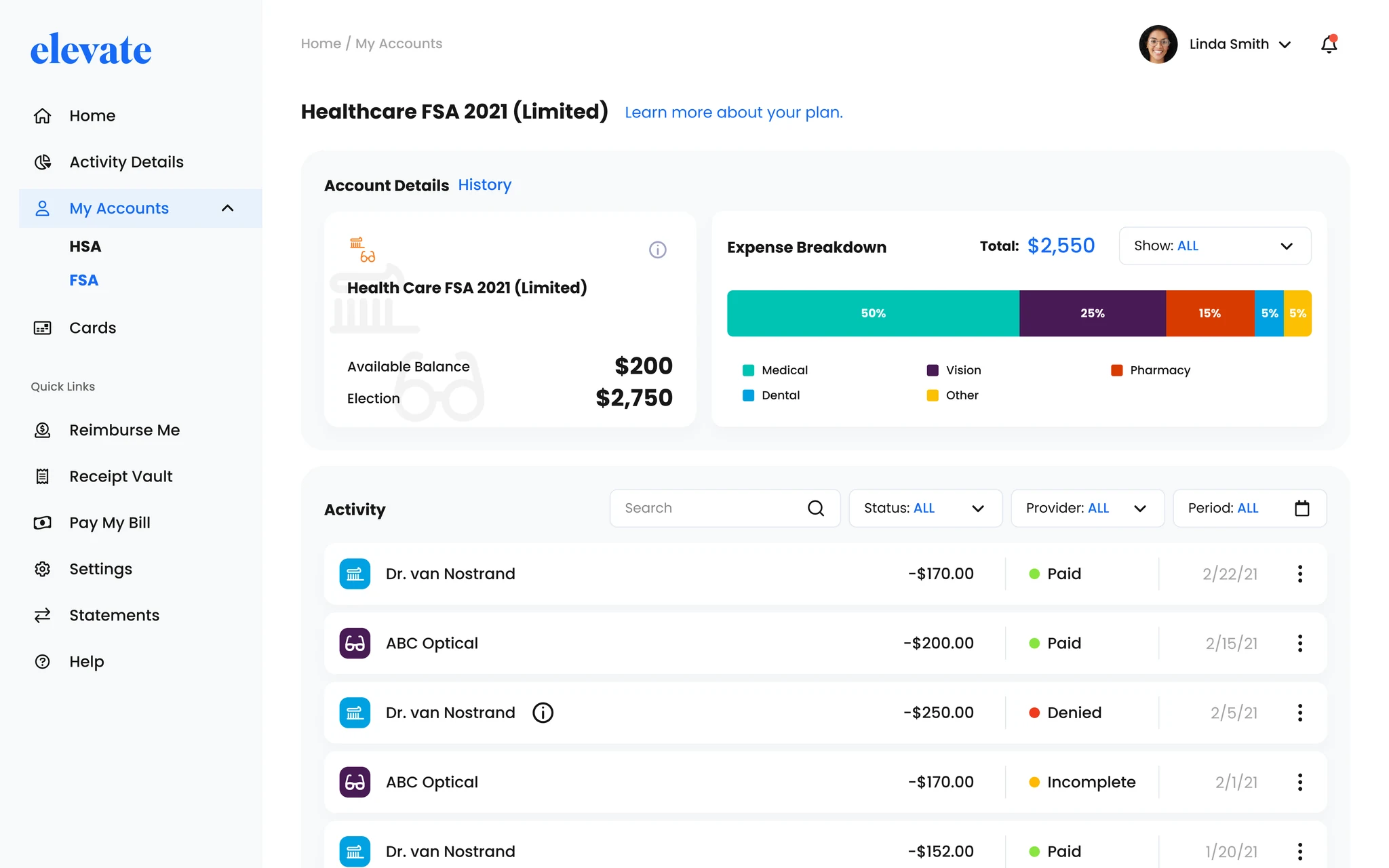
In the original wireframes the Activity details screen tried to show everything at once: a pie chart, a long transaction list and a separate filter panel on the right.

Users had to jump around the page with their eyes and mentally connect categories, filters and rows just to see where their money went.

Activity details screen

What we focused on

  • Replaced the pie chart with a horizontal expense bar so users can read spending left to right and see how it adds up.
  • Moved all filters into one row above the list to create a simple flow: see the breakdown, filter, review results.
  • Cleaned up the transaction list so each row shows one clear merchant, amount, status color and date without extra clutter.

Impact

Participants can now see where their money goes, whether a payment went through and what needs attention in just a few seconds. This cuts support requests and builds trust in the platform.

Transaction details

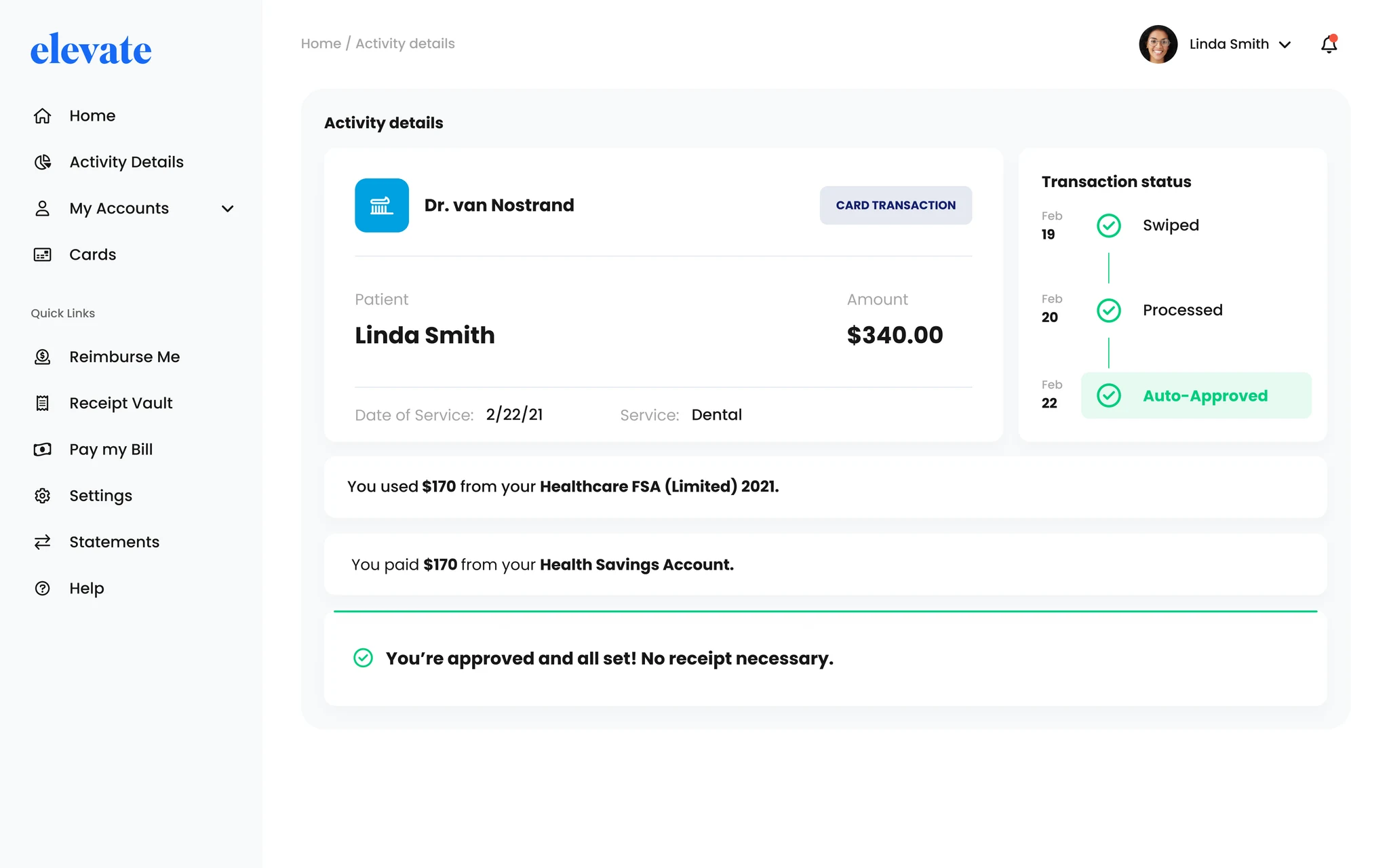
The original transaction screen looked almost the same for every case, whether a payment was fine, needed a receipt or was denied.

Users saw a provider, amount, status timeline and a small “Appeal” button, but still had to guess what happened and what to do next.

Transaction details screen

What we focused on

  • Added three clear states (approved, needs receipt, denied), each with its own message and action in simple language.
  • Kept the top info (provider, patient, amount, date) the same and turned the lower area into a “what this means for you” panel.
  • Simplified the status timeline so users can see how the transaction moved from swipe to final state at a glance.

Impact

Participants quickly see what happened with a charge and what to do next, which lowers stress and reduces “what is going on with my claim” tickets. For Elevate this means smoother, compliant receipt and appeal flows without burying people in IRS language.

Cards

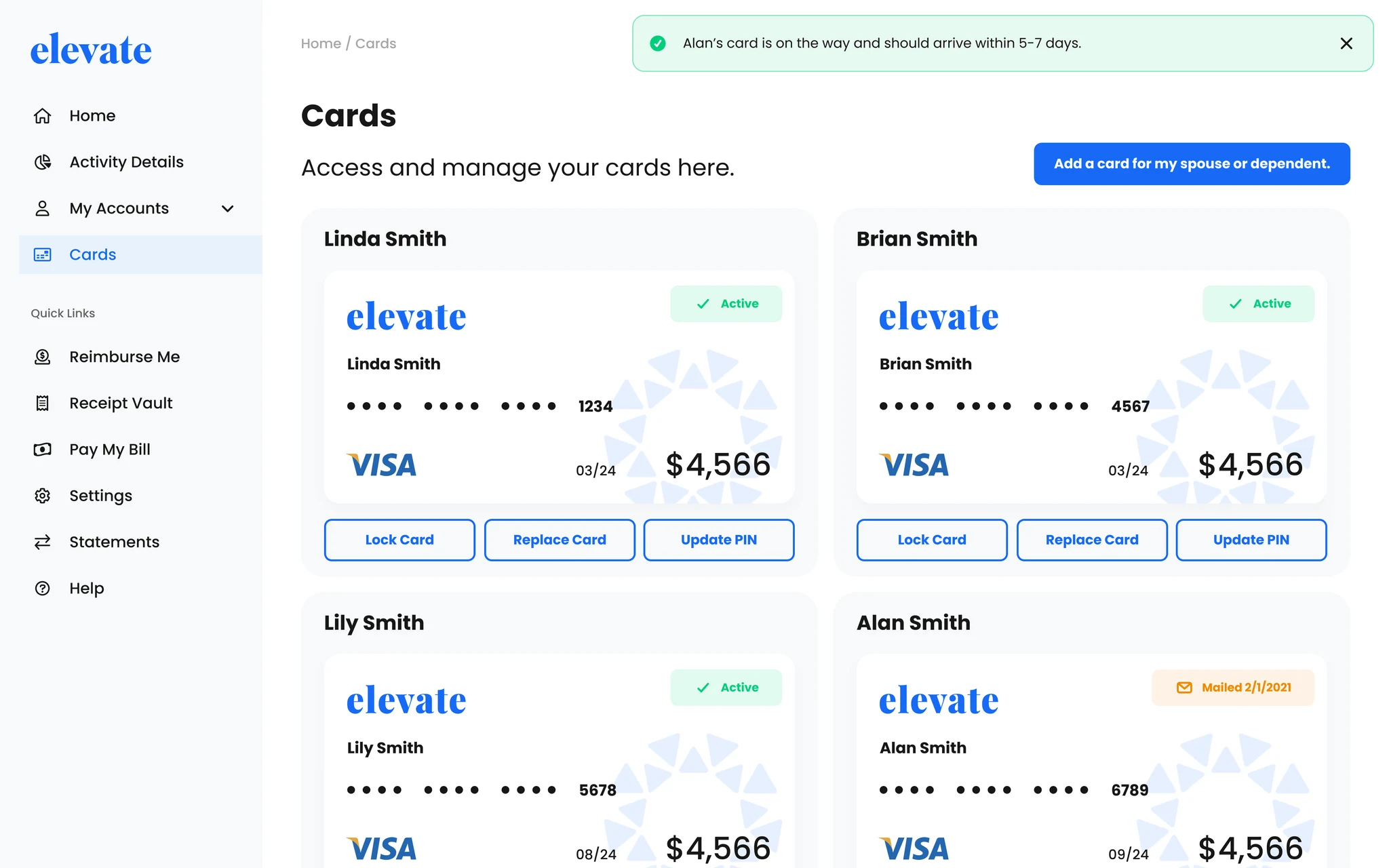
The original Cards screen showed big card blocks with the same three actions for every card, no matter if it was active, locked or being replaced.

When you manage several family cards from one place, that forces you to guess which action is safe, which is a big risk.

Cards screen

What we focused on

  • Made each card its own clear control, with status badges like Active, Locked or Mailed shown right on the card.
  • Tied actions to the card state and moved them under the card, so users always see the right options at the right time.
  • Added focused dialogs for sensitive actions and a card details view with its own activity, so spending and card management stay in one place in the user’s head.

Impact

Participants can now manage multiple family cards with confidence, without worrying they will break something.

For Elevate this means fewer urgent support calls and a card management flow they can safely show in sales demos to employers and partners. Reimbursements and bill pay. Guided flows instead of stressful paperwork.

Reimbursements and bill pay

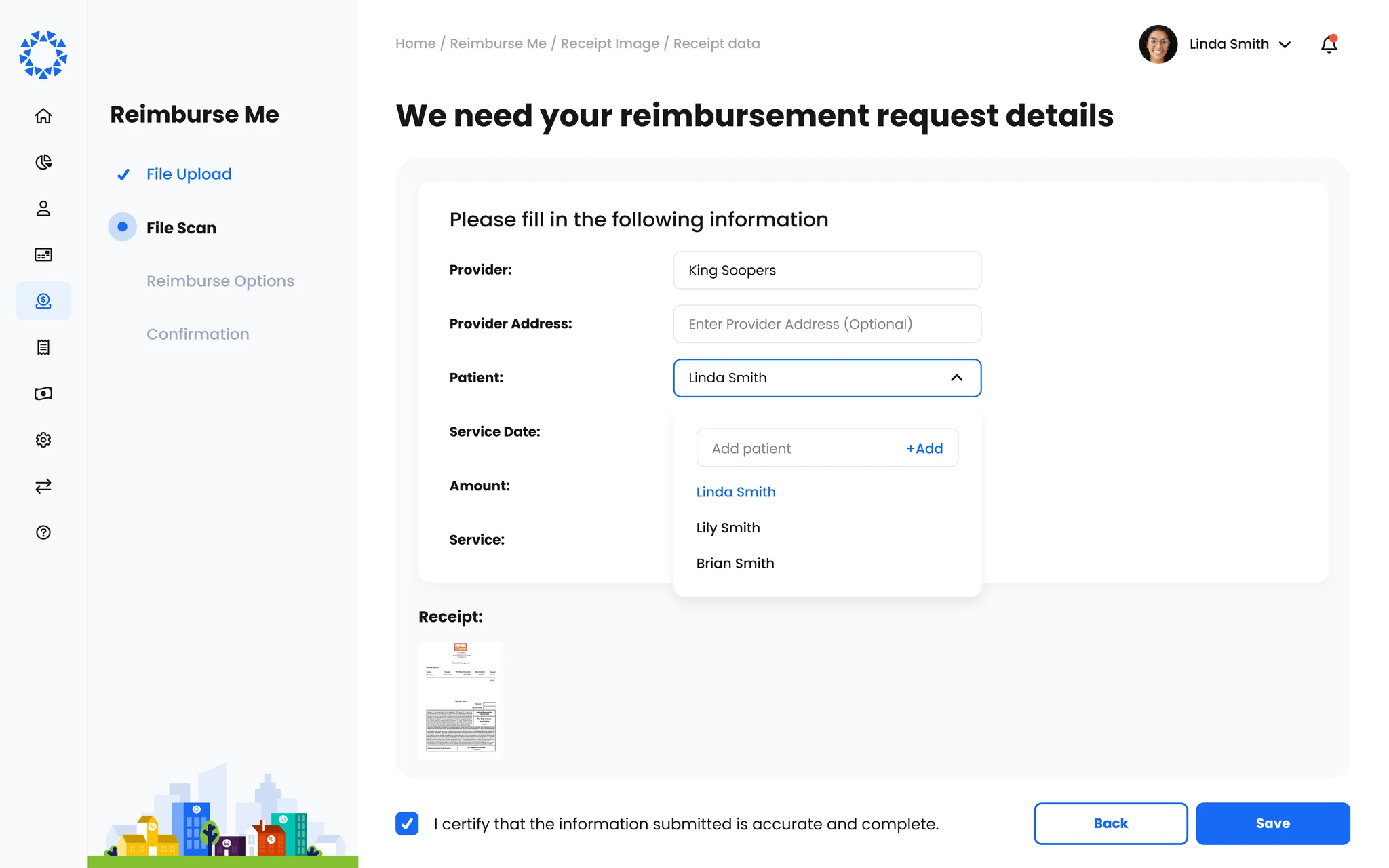
Claiming money back or paying a medical bill is already stressful, and the original flows made it worse.

Users had to upload receipts, wait for OCR, choose timing, pick a payment method and confirm, all in one long stream without a clear sense of where they were or what would happen next.

Reimbursements and bill pay screen

What we focused on

  • Turned both Reimburse Me and Pay My Bill into clear multi step flows: upload, scan, choose options, confirm, with a step list that shows progress.
  • Started with a friendly upload screen and gave OCR its own moment, so the system fills in details and users only review and fix.
  • Turned timing and payment choices into big, visual cards with plain language instead of heavy legal text.
  • Ended with a short review and success screen that confirms the request and tells users when to expect the money.

Impact

Users now move through reimbursements and bill payments with less stress and fewer mistakes, which means fewer failed claims and support tickets.

For Elevate this leads to higher completion rates on key money flows and a product that feels like a modern consumer app, not an old insurance portal.

Admin console

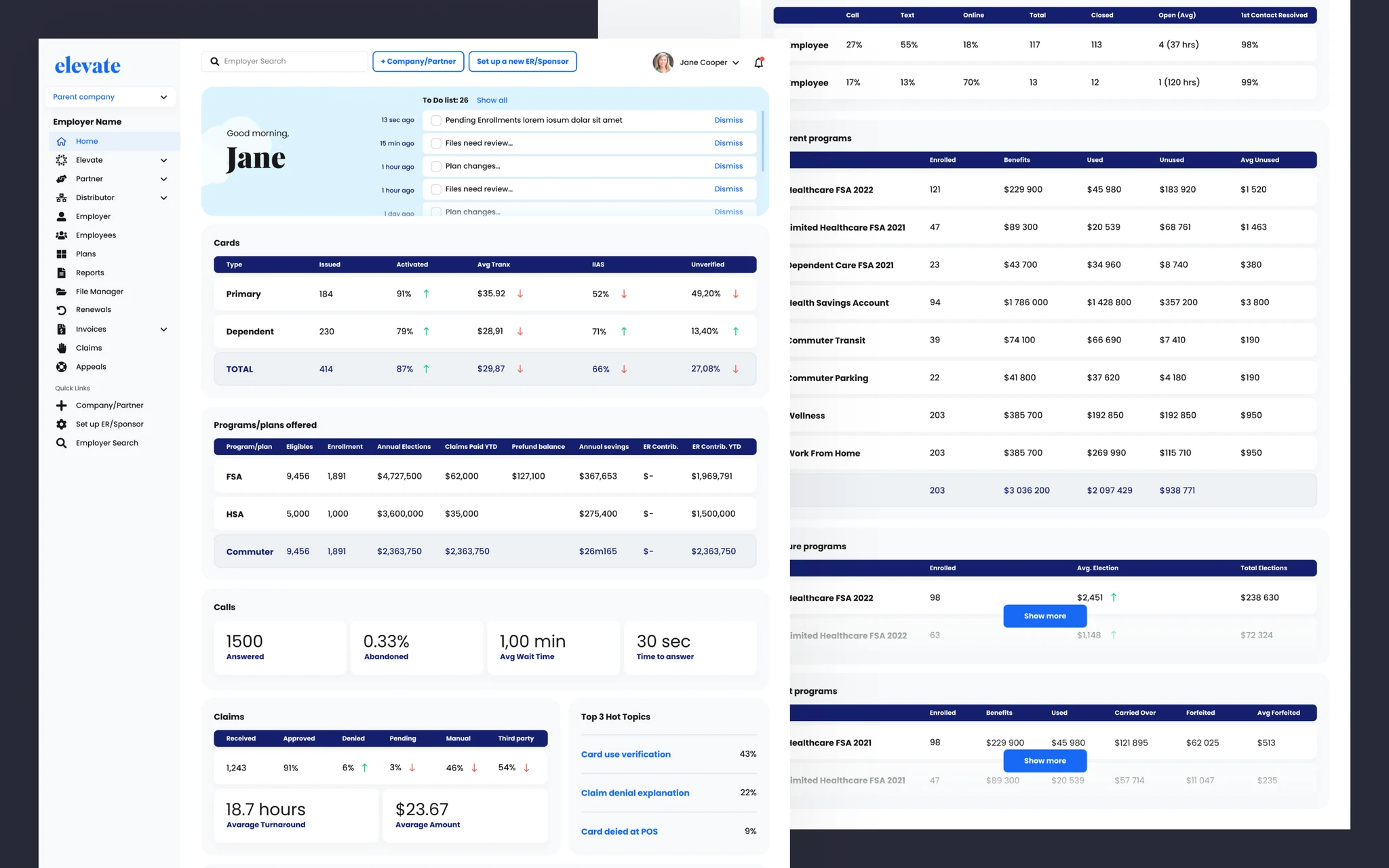
Administrators live in the product every day, jumping between employers, plans, reports and claims.

Our goal was to give them one simple visual language so they can handle a lot of data without feeling overwhelmed.

Admin console screen

What we focused on

  • Kept navigation and layout consistent across all admin sections, so once admins learn one screen, the rest feels familiar.
  • Used a clear hierarchy: key KPIs and summaries at the top, tables and filters below, with one table pattern reused everywhere.
  • Split heavy configuration into guided flows and collapsible sections, so complex forms feel shorter and easier to work through.
  • Added small helpers like “Need help?” buttons and inline tips right where decisions matter, instead of hiding explanations on separate pages.

Impact

New admins get up to speed faster, and experienced users handle complex tasks with fewer clicks and fewer errors.

Elevate can now show the console to enterprise clients without it feeling like a legacy back office tool.

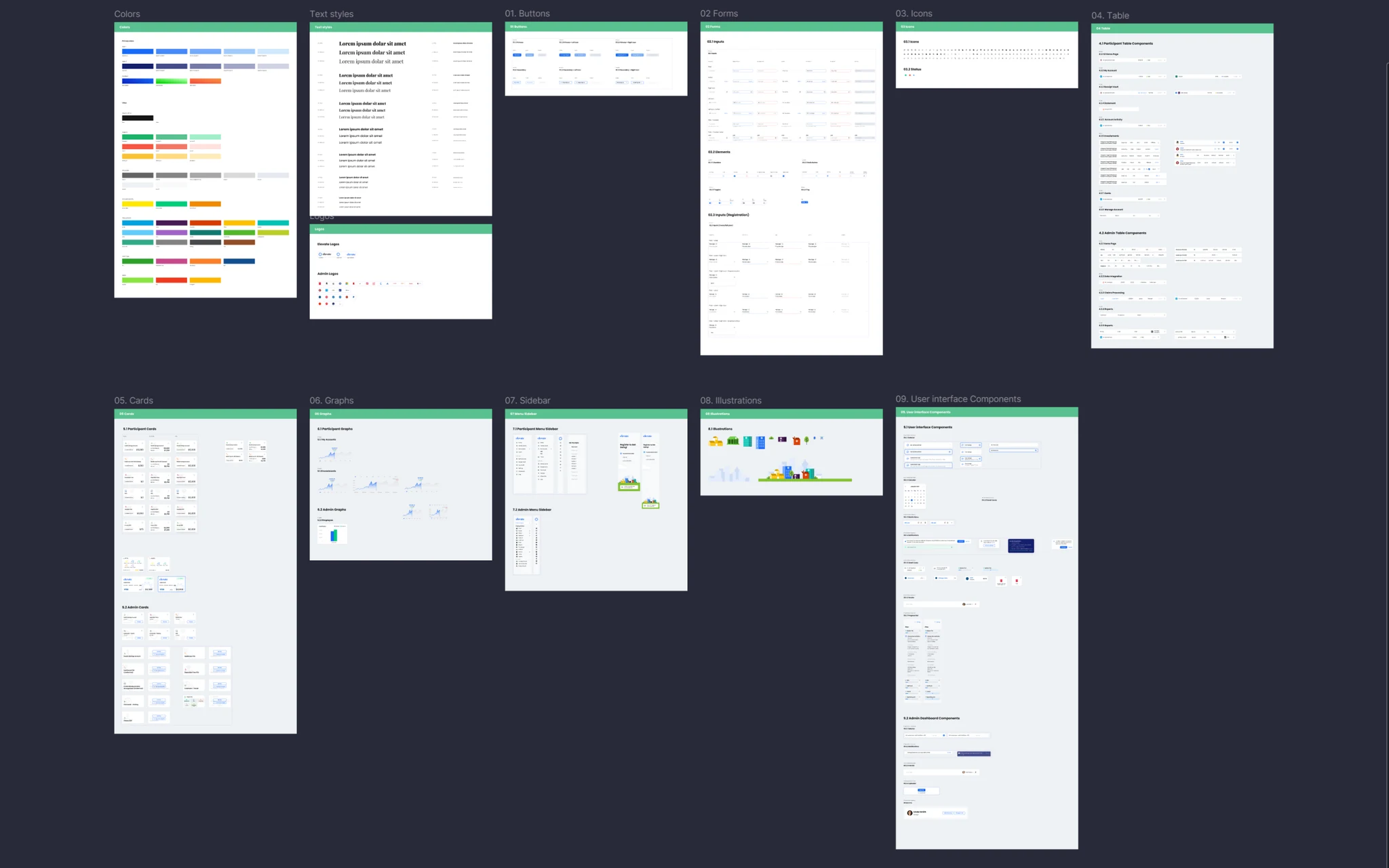
Design system

To keep 150+ screens consistent and easy to build, we created a design system for Elevate.

Think of it as a shared toolkit: one set of colors, text styles, buttons, tables, cards, charts and form patterns that both participant and admin products use.

Design system screen

For the business this means:

  • New features can be designed and developed faster, because teams reuse proven components instead of reinventing each screen
  • Fewer UI mistakes and edge-case bugs, because states and behaviors are already defined
  • The whole product looks and feels like one platform, which builds trust with employers, partners and end users.

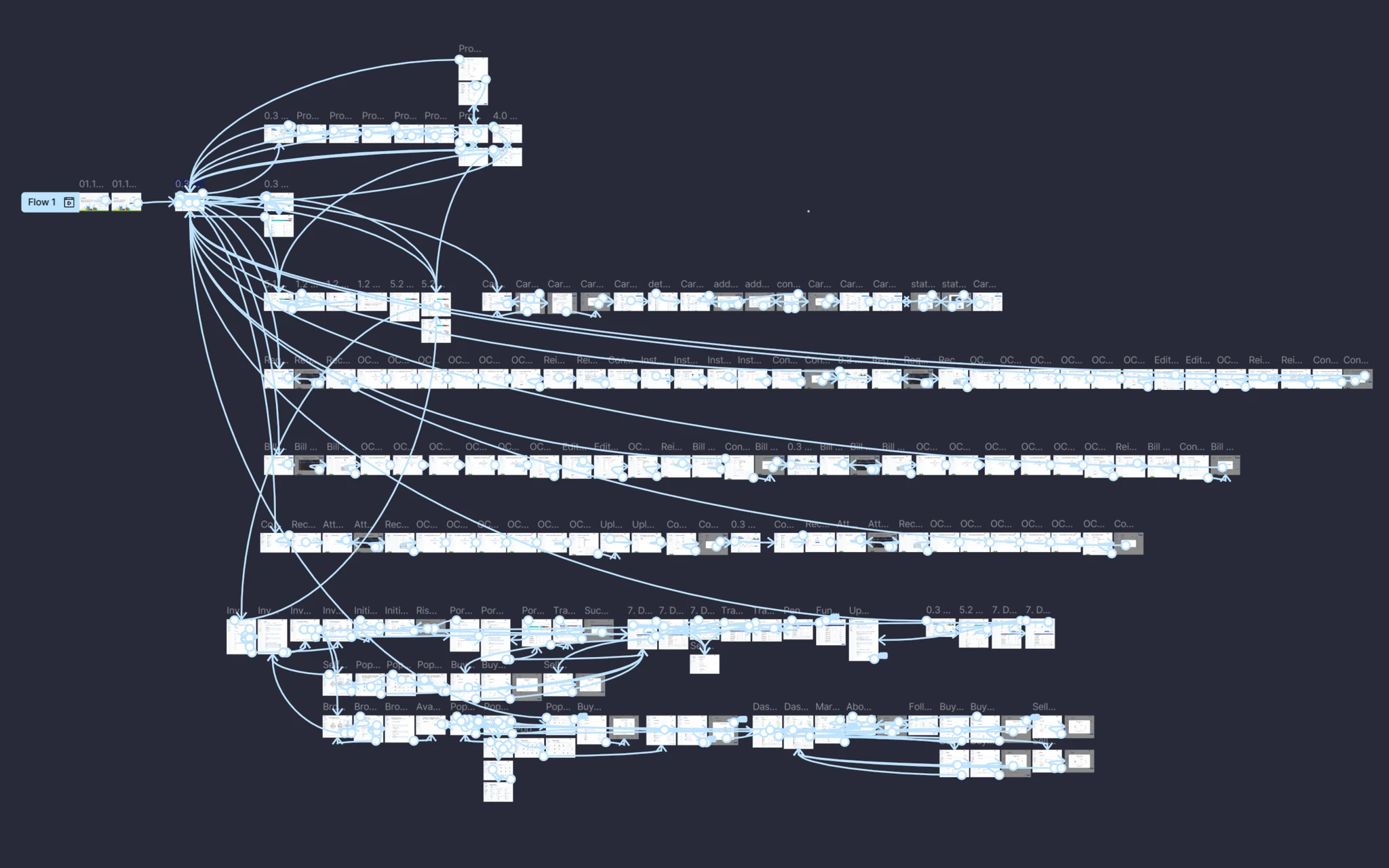
Prototype

We built a clickable Figma prototype that linked 150+ screens into real user journeys, so the team could walk through the product like a live app.

This helped catch UX issues early, align everyone on how the platform should work and gave developers a clear interactive blueprint instead of static screens.

Prototype screen

Results

Elevate left with a product they can proudly show to investors and big enterprise clients. The new UX, admin console and design system helped them raise funding and land two large white label deals, where adaptation was mostly branding and a few settings.

For the team, 150+ screens now run on one design system and one prototype, so new flows and client versions ship in days, not weeks. For users, it simply feels clear, safe and modern. And for us, it is one of those projects where every pixel of effort turned into real business wins.

Clarity is what moves products forward

Start with
a clear next step

We’ll help define a clear path forward

Tell us what you're building